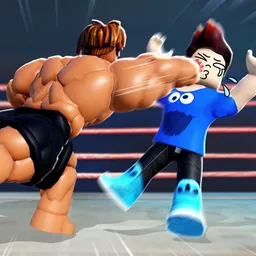
Train to Fight Controls
PC keyboard, mouse, and mobile touch layouts explained.
Mastering Train to Fight controls separates players who train efficiently from those who fumble menus mid-fight. The game uses standard Roblox movement with click-heavy training and a dedicated dodge button in combat. This page lists every important input for PC and mobile, plus tips for switching platforms without losing muscle memory.
PC controls
| Action | Default input |
|---|---|
| Move | W A S D |
| Jump | Space |
| Camera | Mouse |
| Train on machine | Click / interact key |
| Attack in PvP | Click on opponent |
| Dodge | Dodge button (on-screen or bound key) |
| Open menus | HUD icons (top-right) |
| Toggle PvP | Safe-zone toggle UI |
Training machines activate when you walk up and interact, then click rapidly to fill the training bar. Auto-train toggles inside the machine UI — see how to train faster.
Combat targeting uses mouse clicks on enemies. Track dodge cooldown visually; spamming dodge early leaves you vulnerable during the recovery window detailed in PvP combat tips.
Mobile controls
| Action | Default input |
|---|---|
| Move | Virtual joystick (left) |
| Jump | Jump button |
| Train / attack | Tap targets |
| Dodge | Dodge button (right side) |
| Menus | Top-right HUD icons |
| Paste codes | Long-press in Settings field |
Mobile training benefits from two-finger tap alternation during manual bursts. Lower graphics settings if touch registration feels sluggish on older phones.
Settings and code redemption
The gear icon opens Settings including the code redemption box. On small screens, rotate to landscape before redeeming long codes.
PvP toggle location
Safe zones display a PvP on/off control. Learn its position before enabling combat — players often die while browsing Styles with PvP accidentally left on.
Cross-platform play
Progress syncs through your Roblox account. You can train on mobile and fight on PC the same day. Expect an adjustment period: dodge timing differs between touch and mouse. Many players train AFK on mobile and try ranked duels on PC where camera control is easier.
Accessibility tips
- Increase Roblox UI scale if HUD icons feel tiny.
- Use auto-train when repetitive clicking causes strain, but schedule manual bursts for speed bonuses.
- Bind comfortable camera sensitivity before PvP — losing track of opponents costs Respect fast.
Related guides
- Getting started — when to toggle PvP.
- How to train faster — manual vs auto input.
- PvP combat tips — dodge discipline.
Camera and awareness
Camera control on PC uses the mouse to track opponents during PvP. High sensitivity helps in crowded servers but makes training menu clicks harder — find a middle setting before grinding Respect. On mobile, drag the screen with your right thumb while moving with the left joystick. Losing sight of an attacker during a dodge window is a common reason new players drop combos.
Menu shortcuts during sessions
The Styles, Shop, and Settings icons share the top-right cluster. Memorize the gear icon position so you redeem codes quickly between training sets without opening the wrong panel. After redeeming, return to your machine route instead of standing idle in open PvP.
Practice drill
Spend ten minutes in a safe zone practicing dodge then counter on a friend or low-stakes duel. Repeat until you can dodge once per incoming combo without double-tapping. Then read PvP combat tips for target selection.
Frequently Asked Questions
Quick answers to the most common questions.
What are the Train to Fight PC controls?
WASD to move, mouse to click train and attack, Space to jump, and on-screen dodge plus HUD menus.
How do you train on mobile?
Walk to a machine, tap to interact, then tap rapidly or enable Auto in the machine UI.
Where is the code menu?
Gear icon → Settings → code field at the bottom. See how to redeem codes for details.
Can you play Train to Fight on controller?
Roblox supports some controllers, but the game is optimized for keyboard/mouse and touch.